Arpeggio Trainer
1Root
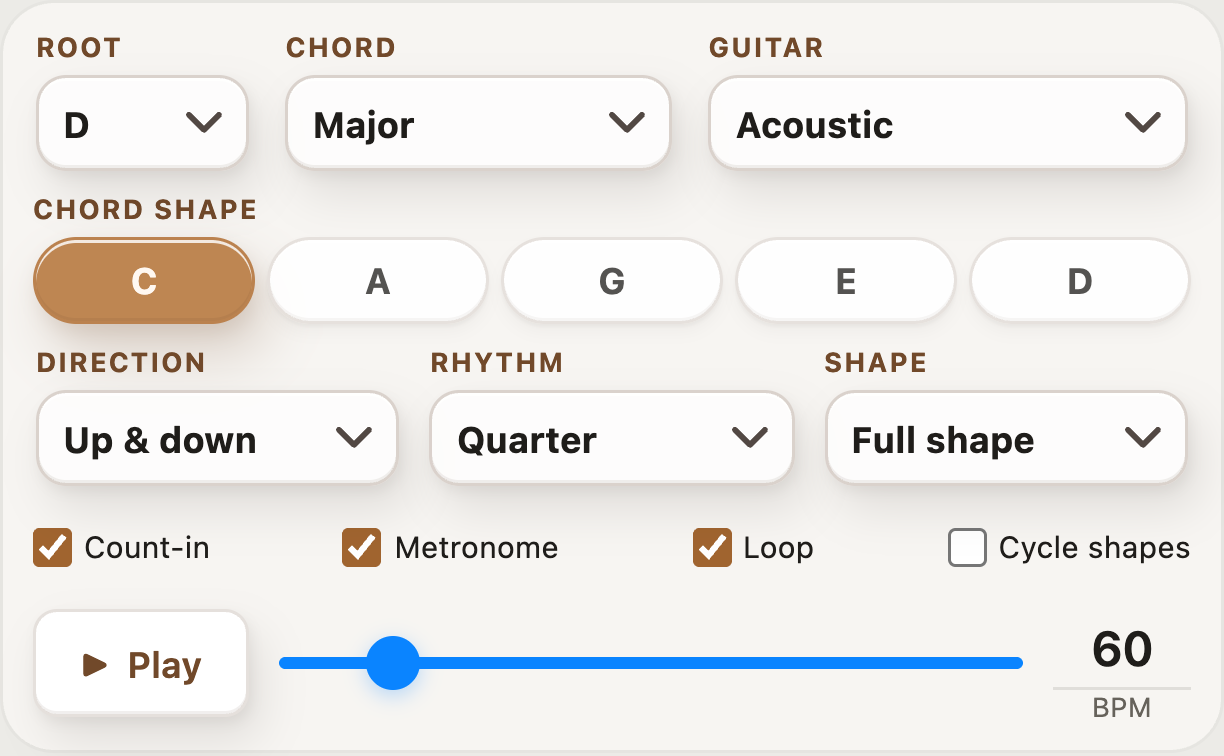
Choose the note the chord is built on. For example, choose C to study a C chord.
Turn chord shapes into single-note phrases.
A triad is a chord made from three different notes; an arpeggio is a way of playing chord notes one at a time. For C major, those notes are C, E, and G. Try C–E–G–C, with the last C an octave higher: you have played four notes, but used the same three chord tones. Arpeggios can also outline larger chords, such as sevenths, helping you build melodies that follow the harmony.
The Arpeggio Trainer maps chord notes around the CAGED shapes: five fretboard patterns based on familiar C, A, G, E, and D chord shapes. Follow the highlighted notes and optional TAB, choose a direction and rhythm, and loop slowly or cycle through shapes. This lets you practice picking accuracy, timing, and finding the same chord in different areas of the neck.
Select a number in an image to see its explanation.
Choose the note the chord is built on. For example, choose C to study a C chord.
Choose the type of chord. For example, select Major with a C root to practice the notes of C major.
Choose the sound used for arpeggio playback, such as acoustic or electric.
Choose C, A, G, E, or D to see arpeggio notes around that familiar chord shape on the neck.
Choose the order in which notes play: up, down, or up and down.
Choose how many notes play per beat. For example, eighth notes play two notes per beat.
Choose Full shape to practice the complete pattern, or One octave to use a shorter pattern from one root note to the next.
Hear a few beats before the notes start, giving you time to get ready.
Turn on a steady click to help you keep time.
Repeat the pattern until you press Stop.
Automatically move through the CAGED shapes to practice the chord across the neck.
Press Play to hear the notes in the selected order. Press Stop to end playback.
Move the slider to change the playback speed in beats per minute (BPM). Start slowly enough to play each note cleanly.
Tap the number and type a tempo for a precise speed; the slider updates to match.
Tap the star to save the current arpeggio setup in Favorites.
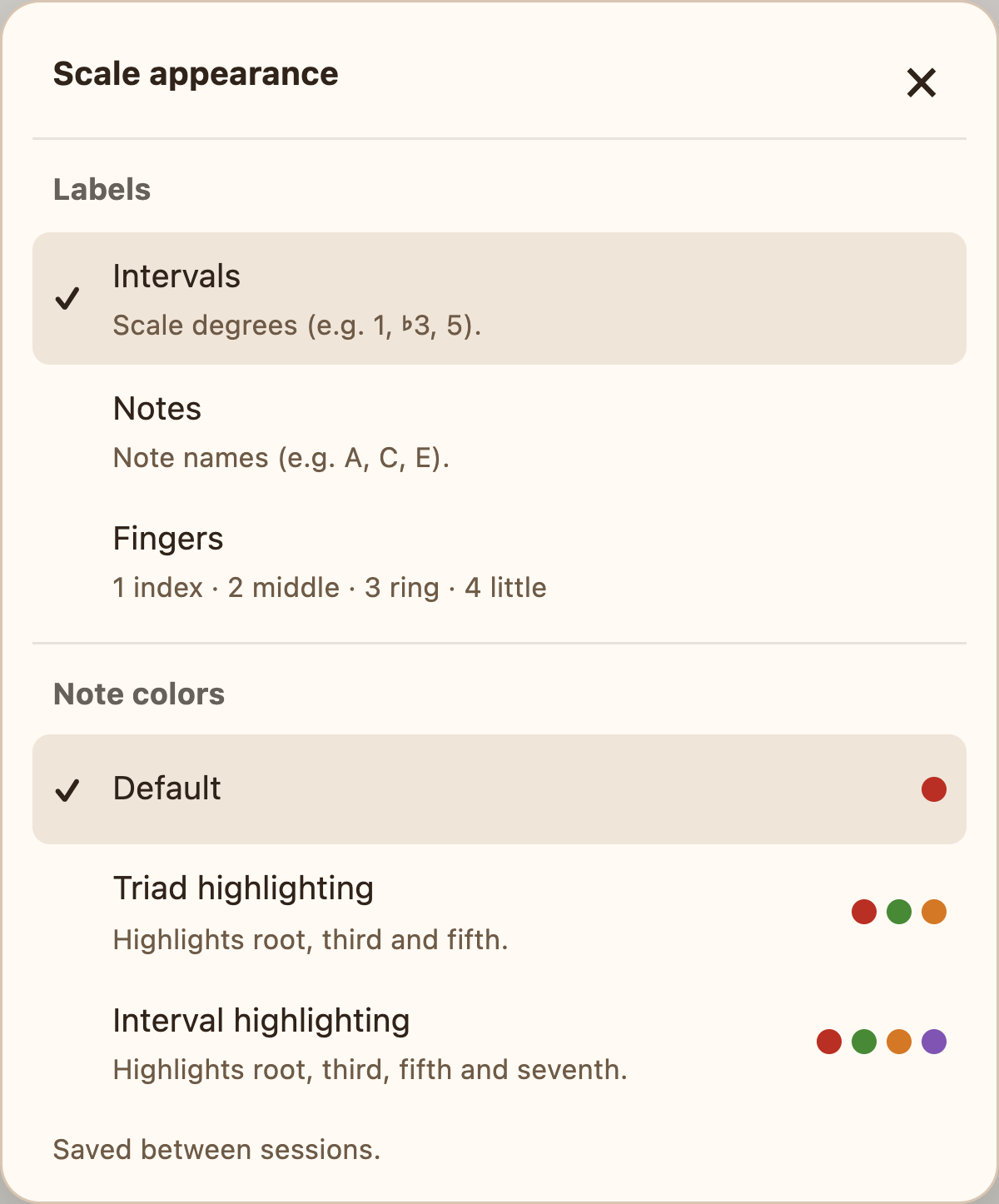
Tap the gear beside the fretboard title to change note colors and labels. Choose Notes for note names, Intervals for their relationship to the root, or Fingers for suggested finger numbers.
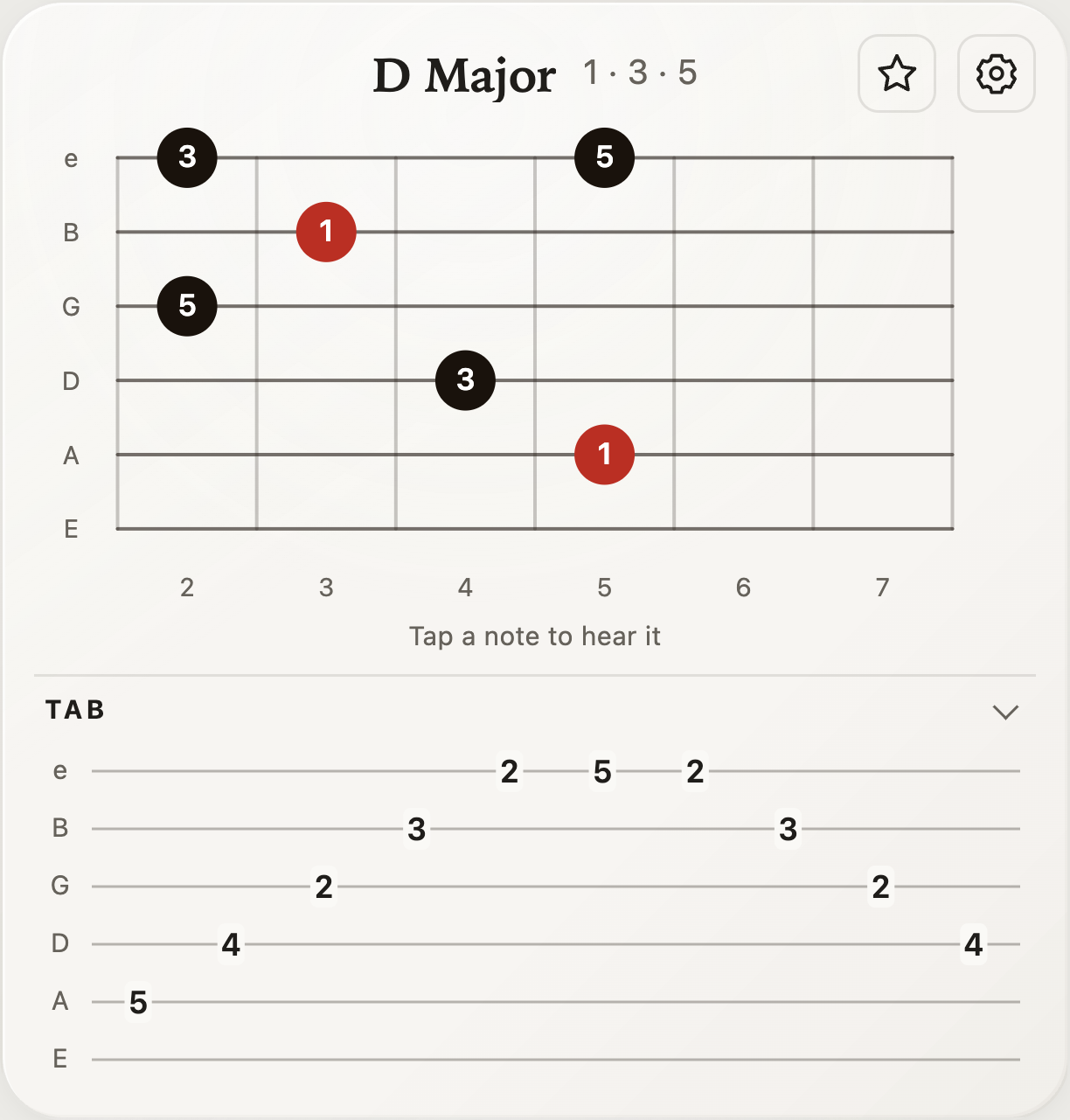
See arpeggio appearance settingsThe dots show where to play the arpeggio on the guitar. Tap a dot to hear that note.
Expand TAB to see which fret to play on each string. Tap a note on the fretboard to hear it.
Show each note’s role relative to the chord root, such as 1, 3, and 5.
Show note names on the fretboard, such as D, F♯, and A for D major.
Show suggested fingers: 1 index, 2 middle, 3 ring, and 4 little finger.
Use the standard colors, with the root note highlighted.
Color the root, third, and fifth differently to make those chord tones easier to recognize.
Use different colors for the root, third, fifth, and seventh when those notes are present.