Exercises
1Difficulty
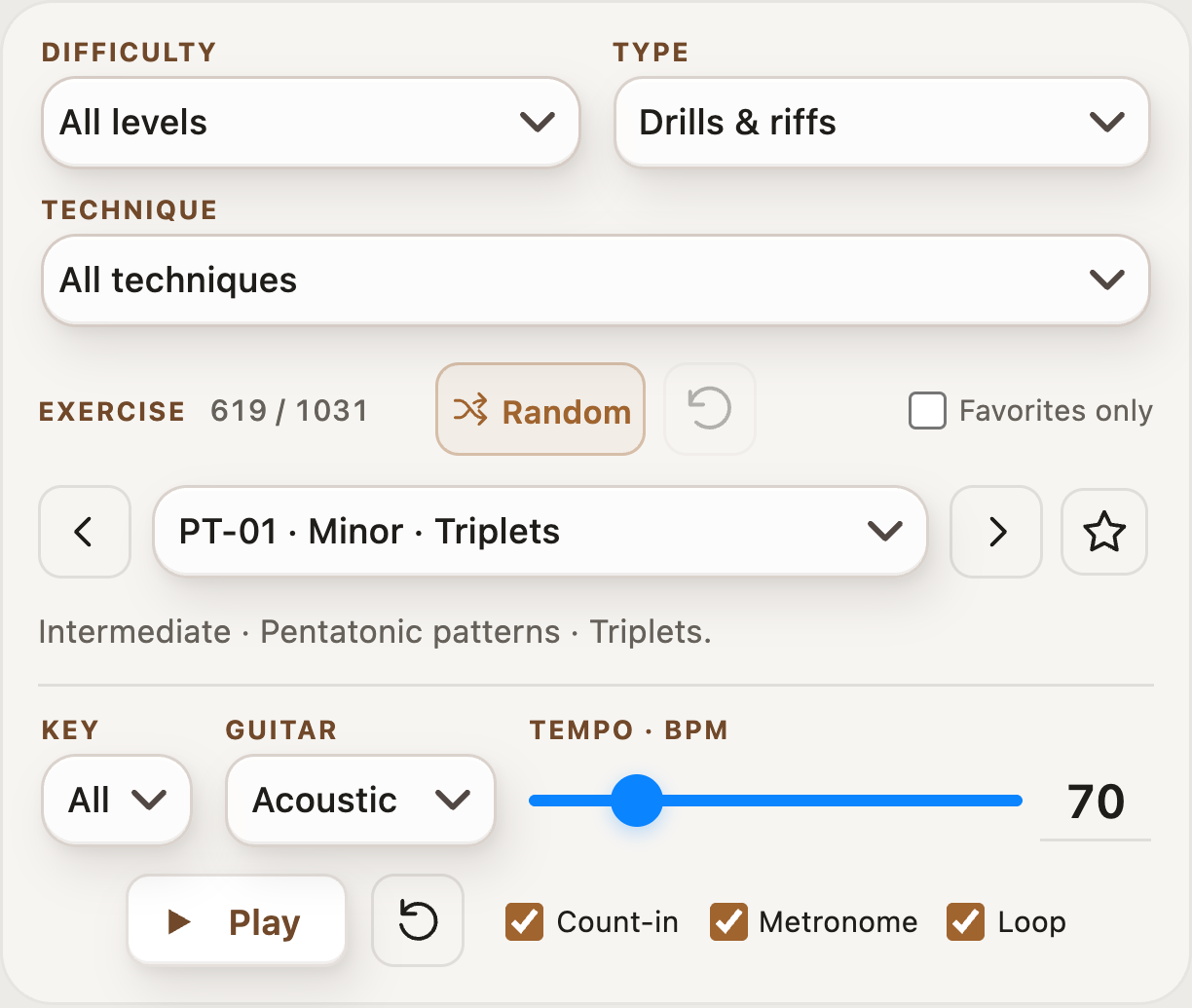
Filter the list by difficulty. Choose a beginner level if you want a simpler starting point.
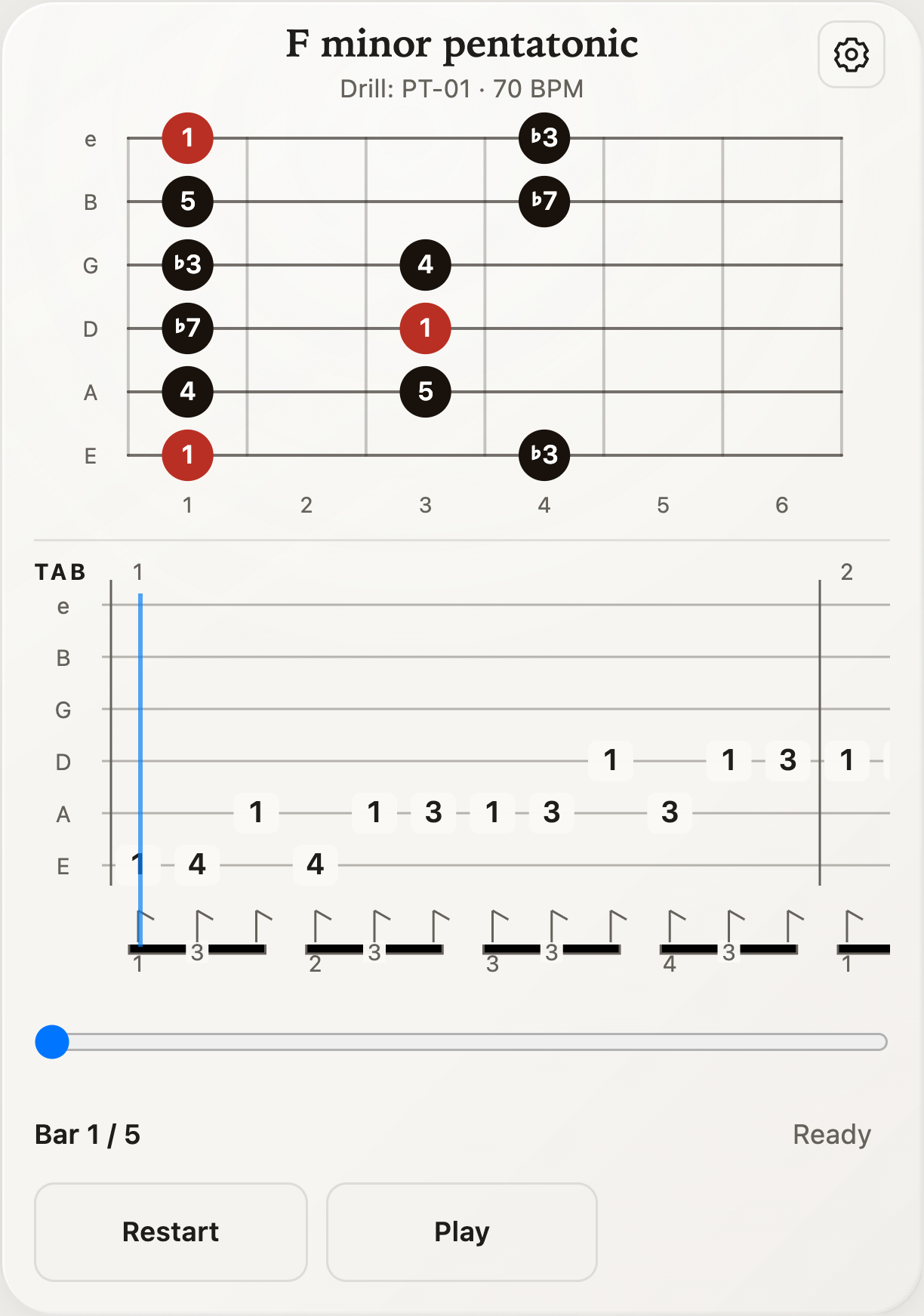
Learn riffs and build technique with animated TAB.
Exercises are short patterns for building a skill; riffs are short musical phrases you can learn and repeat. Explore over 1,000 exercises and riffs, filtered by difficulty and technique. TAB, short for tablature, uses numbers to show which fret to play on each string, so you can follow along without reading standard music notation.
Listen to the phrase, follow the animated TAB and fretboard, then play it slowly on your guitar. Use looping or one-bar practice to focus on a tricky passage, and add the metronome to work on timing. Star exercises you want to revisit; build speed only when the notes feel clean and controlled.
Select a number in an image to see its explanation.
Filter the list by difficulty. Choose a beginner level if you want a simpler starting point.
Show drills, riffs, or both.
Choose the skills or categories you want to practice, then tap Done.
Choose a random exercise that matches the current filters.
Clear the exercise filters and return to the full list.
Show only exercises you have starred.
Move to the previous exercise that matches the current filters.
Tap the exercise name to browse or search the matching list.
Move to the next exercise that matches the current filters.
Tap the star to save this exercise. Use Favorites only to find starred exercises again.
Choose a key to move the exercise to a different pitch when that option is available.
Choose the sound used for exercise playback.
Move the slider to change the speed. Slow the exercise down while learning it.
Tap the tempo number and type a value to set an exact speed in beats per minute.
Press Play to hear and follow the exercise. Press Pause to stop at the current position.
Tap Restart to play from the beginning, including the count-in if it is enabled.
Hear beats before playback begins so you have time to get ready.
Turn on a steady click while the exercise plays.
Repeat the exercise until you pause it.
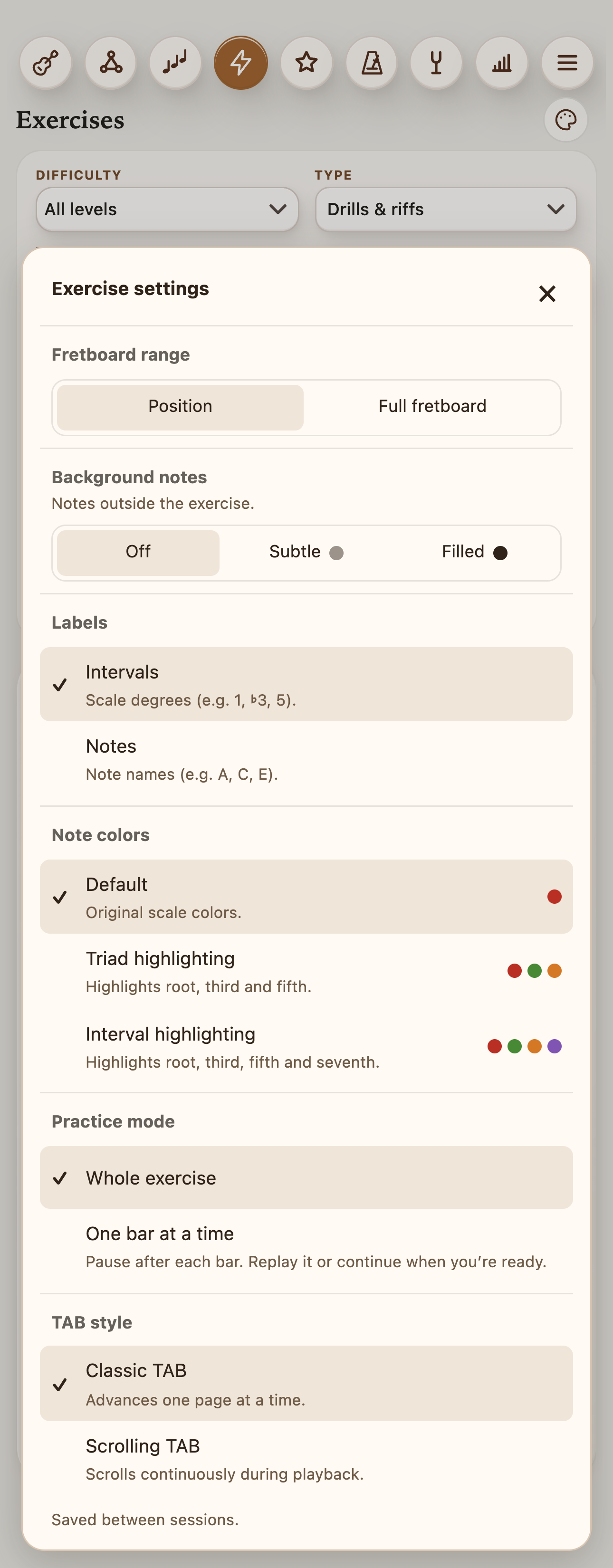
Tap the gear to change the display and practice mode. The settings menu is shown below.
See exercise settingsFollow the highlighted notes as they play. Tap a note to hear it.
The numbers on the TAB tell you which frets to play; each line represents a string. Tap a note in the TAB to hear it and jump to that point, or tap a fretboard note to hear it.
Drag the slider to move to a different point in the exercise.
In one-bar practice, use the controls below the TAB to replay a bar or move through the exercise.
Focus the fretboard on the area used by the current notes.
Show more of the neck so you can see notes outside the current position.
Hide notes that are not part of the exercise.
Show other notes faintly so the exercise notes stand out.
Show other notes as filled dots alongside the exercise notes.
Show each note’s role relative to the root, such as 1, ♭3, or 5.
Show note names, such as A, C, and E.
Use the standard diagram colors.
Use different colors for the root, third, and fifth.
Use different colors for the root, third, fifth, and seventh when present.
Play through the complete exercise without stopping after each bar.
Pause after each bar so you can replay it or continue when ready.
Show TAB one page at a time during playback.
Move the TAB continuously during playback.