Favorites
1Save a favorite
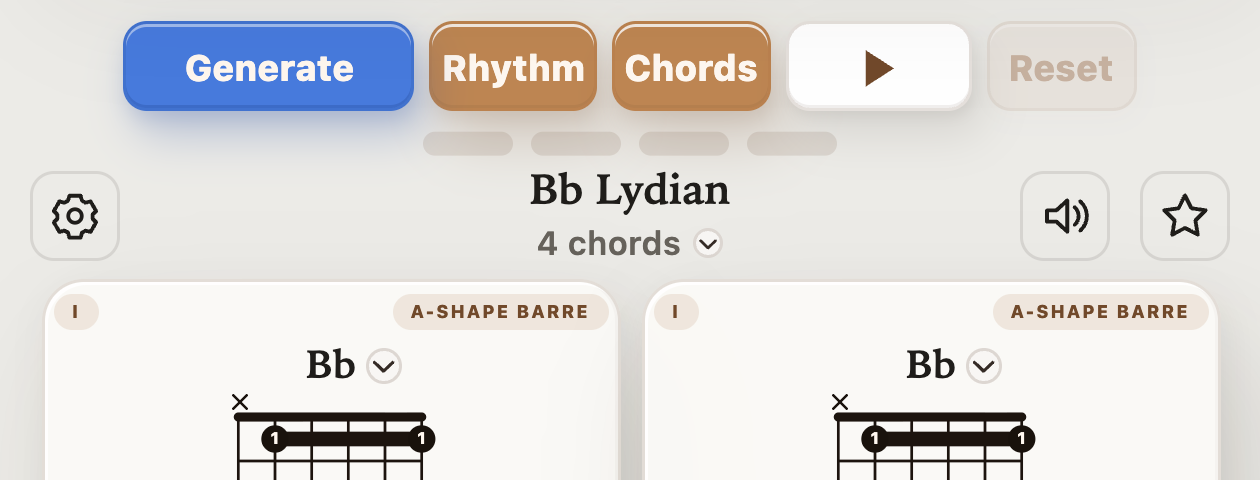
Tap the star on any of these screens to save a progression, triad, arpeggio, or exercise. Open Favorites to find it again.
Keep the ideas and practice setups you want to revisit.
Favorites keeps the progressions, triad setups, arpeggio setups, and exercises you want to return to. Saving an idea gives you a way to pick up where you left off instead of rebuilding the same practice setup each time.
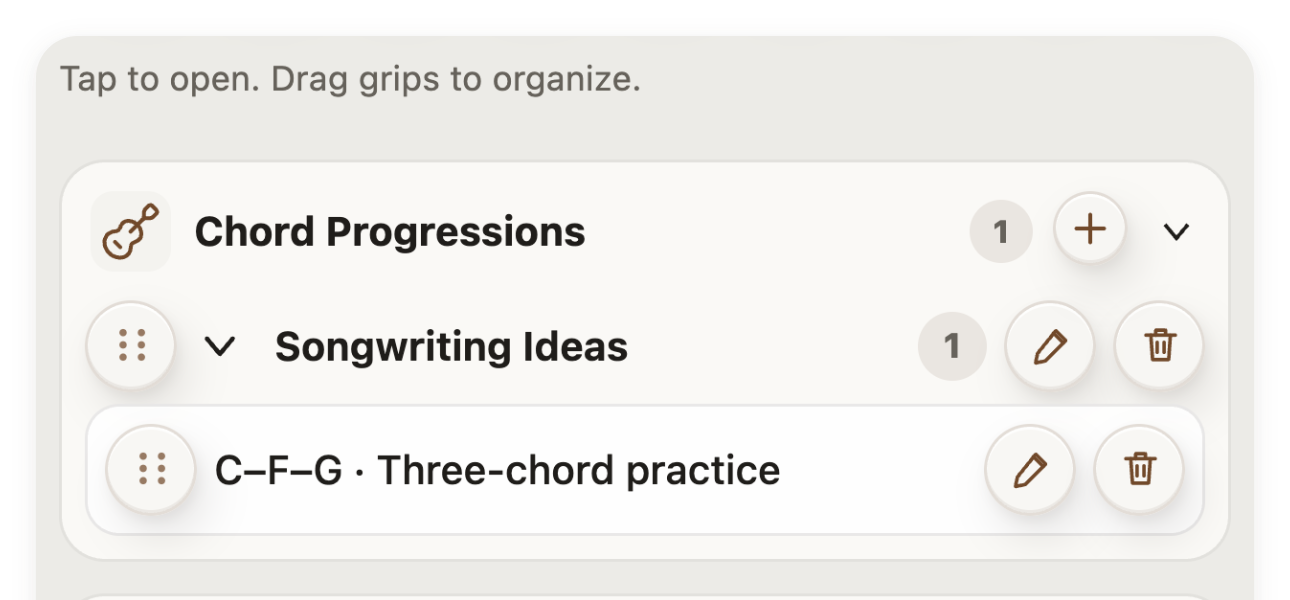
Tap a tool’s star to save it, then open the saved item here to return to that tool. You can rename items and organize saved progressions into folders. Try keeping a few familiar exercises and chord ideas ready for your next session.
Select a number in an image to see its explanation.
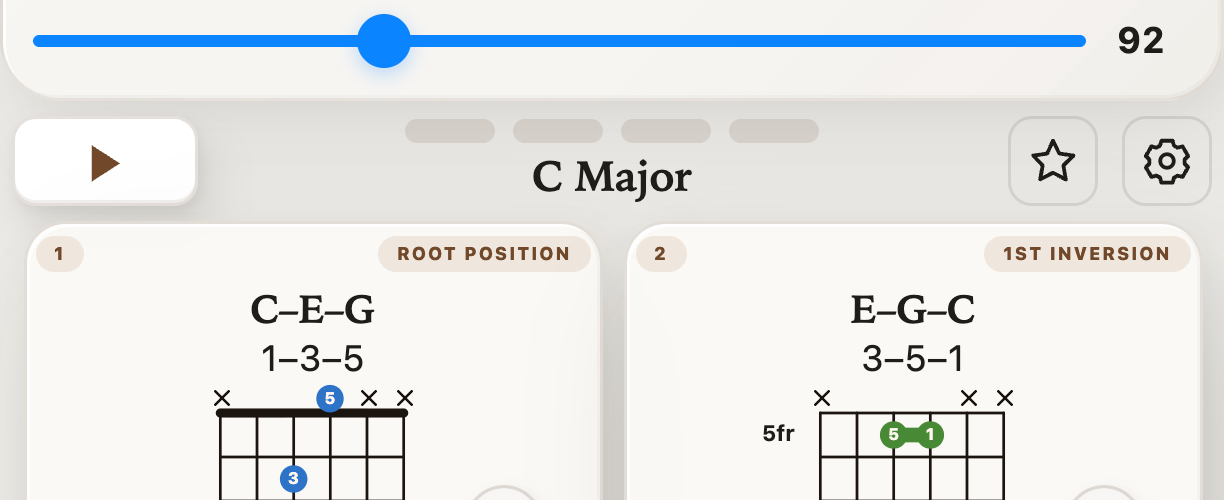
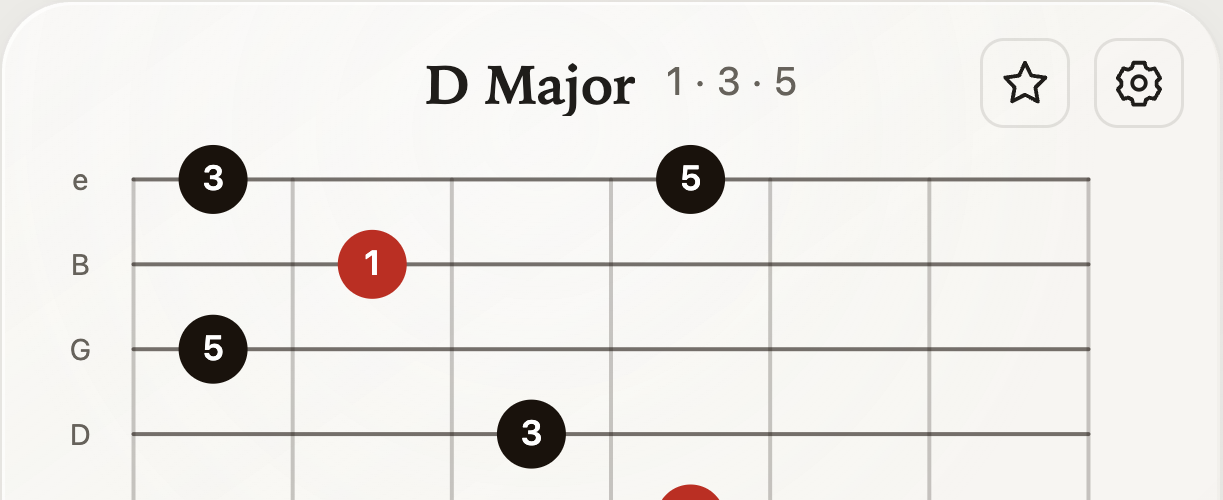
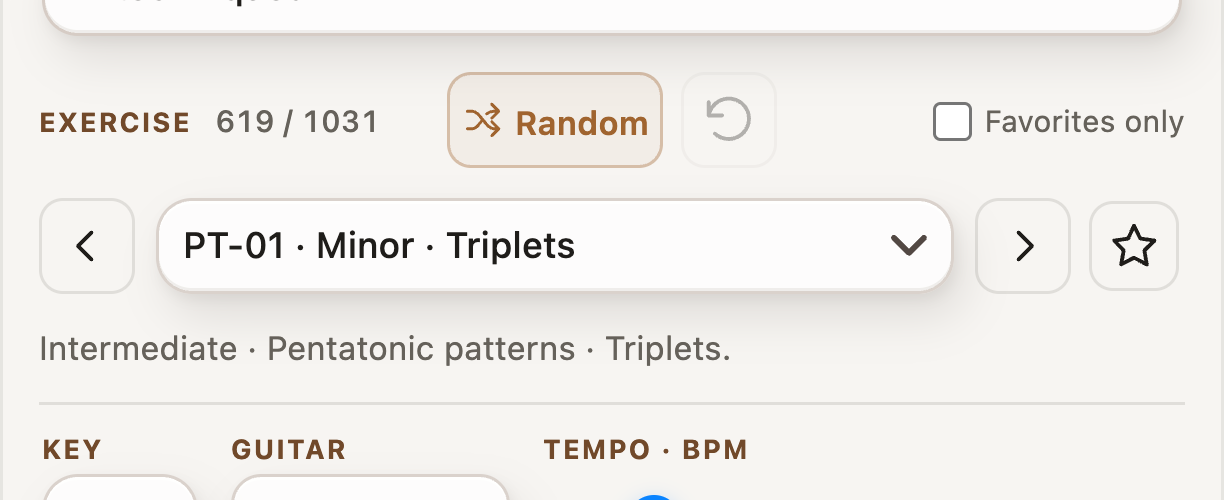
Tap the star on any of these screens to save a progression, triad, arpeggio, or exercise. Open Favorites to find it again.
Use the plus button in Favorites to create a folder for progressions. Tap a folder to expand it; use the dotted grips to organize items.
Tap the arrow to show or hide the favorites in a category or folder.
Press and drag a dotted grip to change the order of folders or move a saved progression between folders.
Tap a saved item to return to its tool and load the saved setup.
Tap the pencil beside a saved item or folder to change its name.
Tap the trash icon to delete an item or folder. Deleting a folder also deletes the items saved inside it.