Settings & appearance
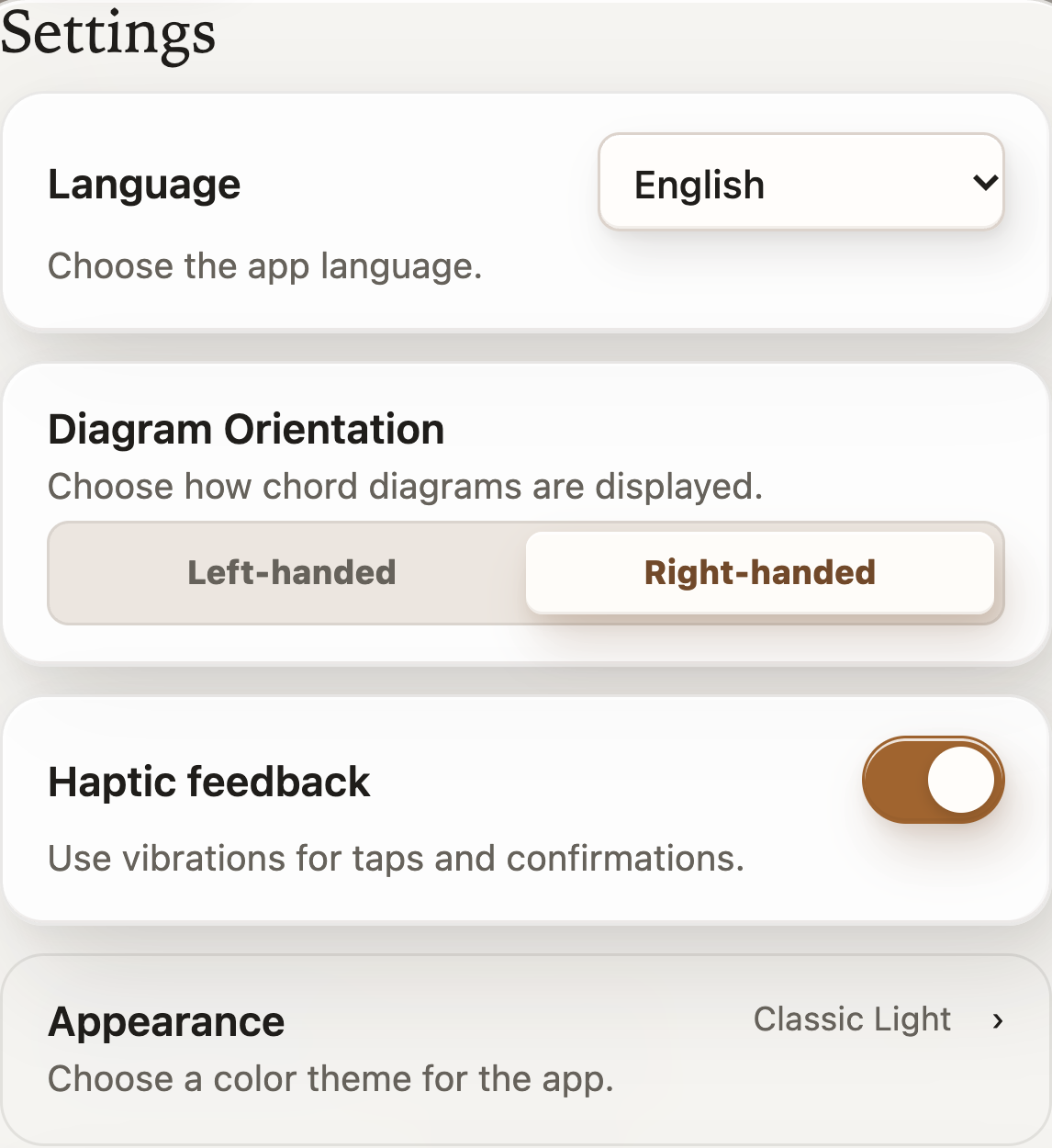
1Language
Choose the language used for the app’s controls and menus.
Make the app feel natural for the way you play.
Settings adapts StrumForge to the way you play. Choose your language, left- or right-handed diagrams, appearance, and shortcuts to the tools you use most. Defaults let you start with familiar choices such as a preferred key, tempo, groove, and guitar sound.
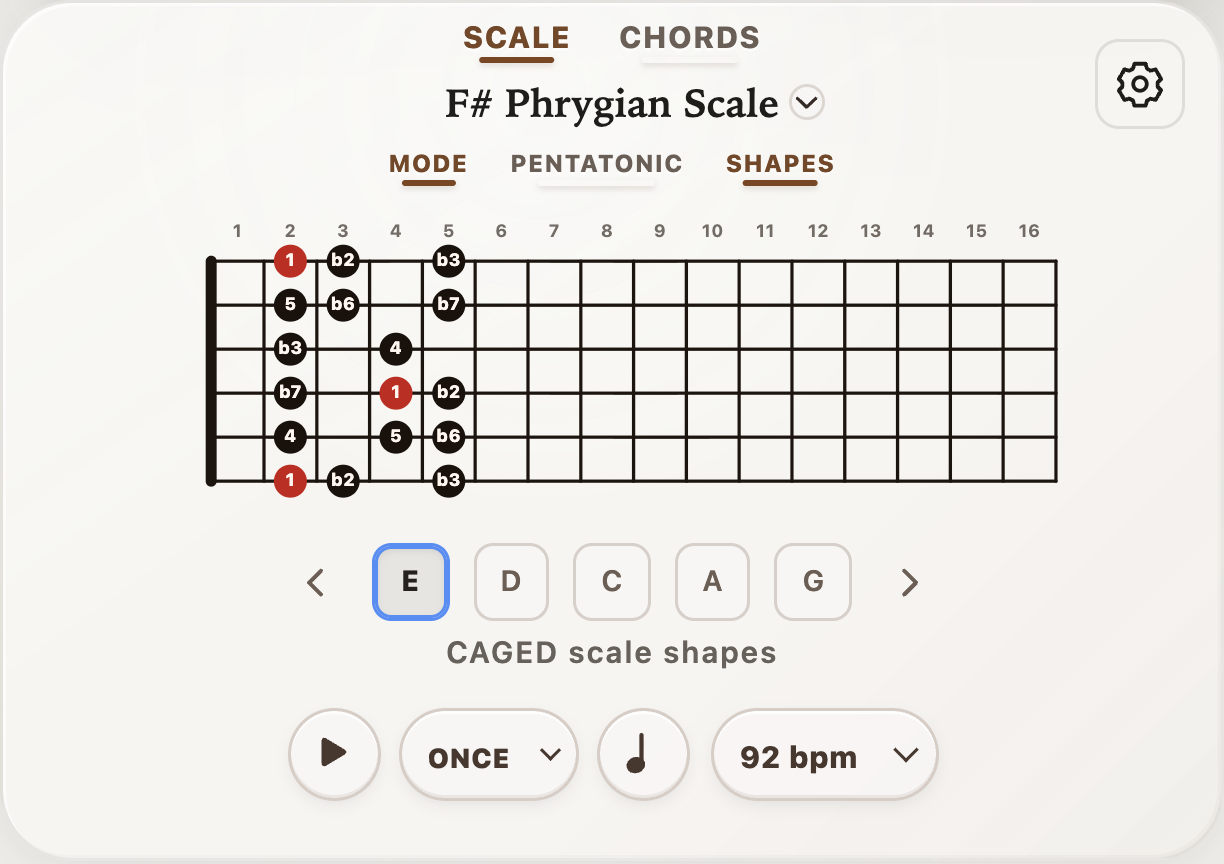
For the diagrams themselves, use the nearby gear or palette controls to choose labels and colors; the available options depend on the tool. Note names tell you which pitches to play, interval labels show how notes relate to the root, and finger numbers suggest which fretting fingers to use. Pick the view that makes your current practice easiest to follow.
Select a number in an image to see its explanation.
Choose the language used for the app’s controls and menus.
Choose left-handed or right-handed to match how you hold your guitar. This changes how chord diagrams are displayed.
Turn the small vibrations used for taps and confirmations on or off.
Choose a color theme for the app.
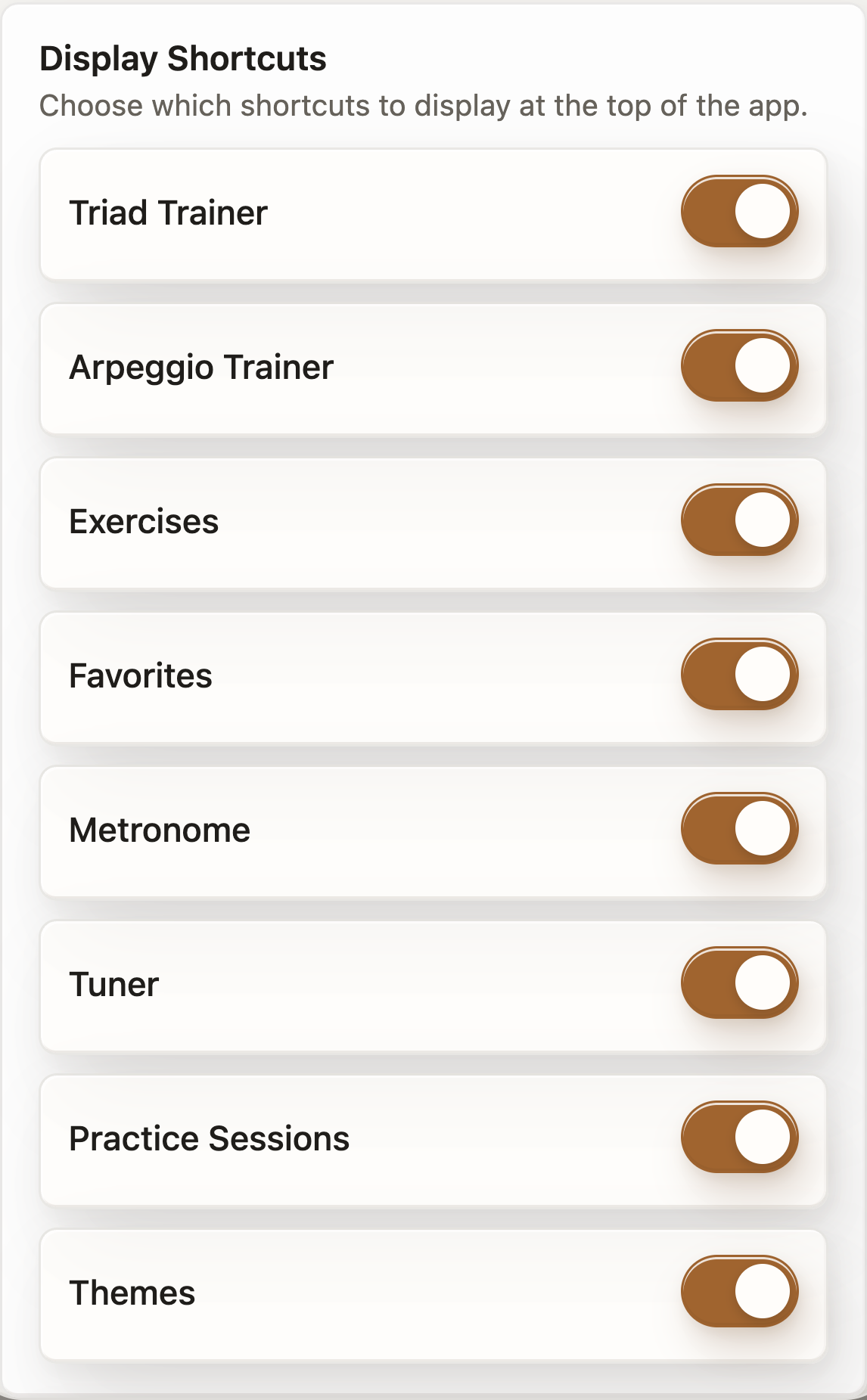
Show or hide the Triad Trainer shortcut at the top of the app.
Show or hide the Arpeggio Trainer shortcut.
Show or hide the Exercises shortcut.
Show or hide the Favorites shortcut.
Show or hide the Metronome shortcut.
Show or hide the Tuner shortcut.
Show or hide the Practice Sessions shortcut.
Show or hide the theme shortcut.
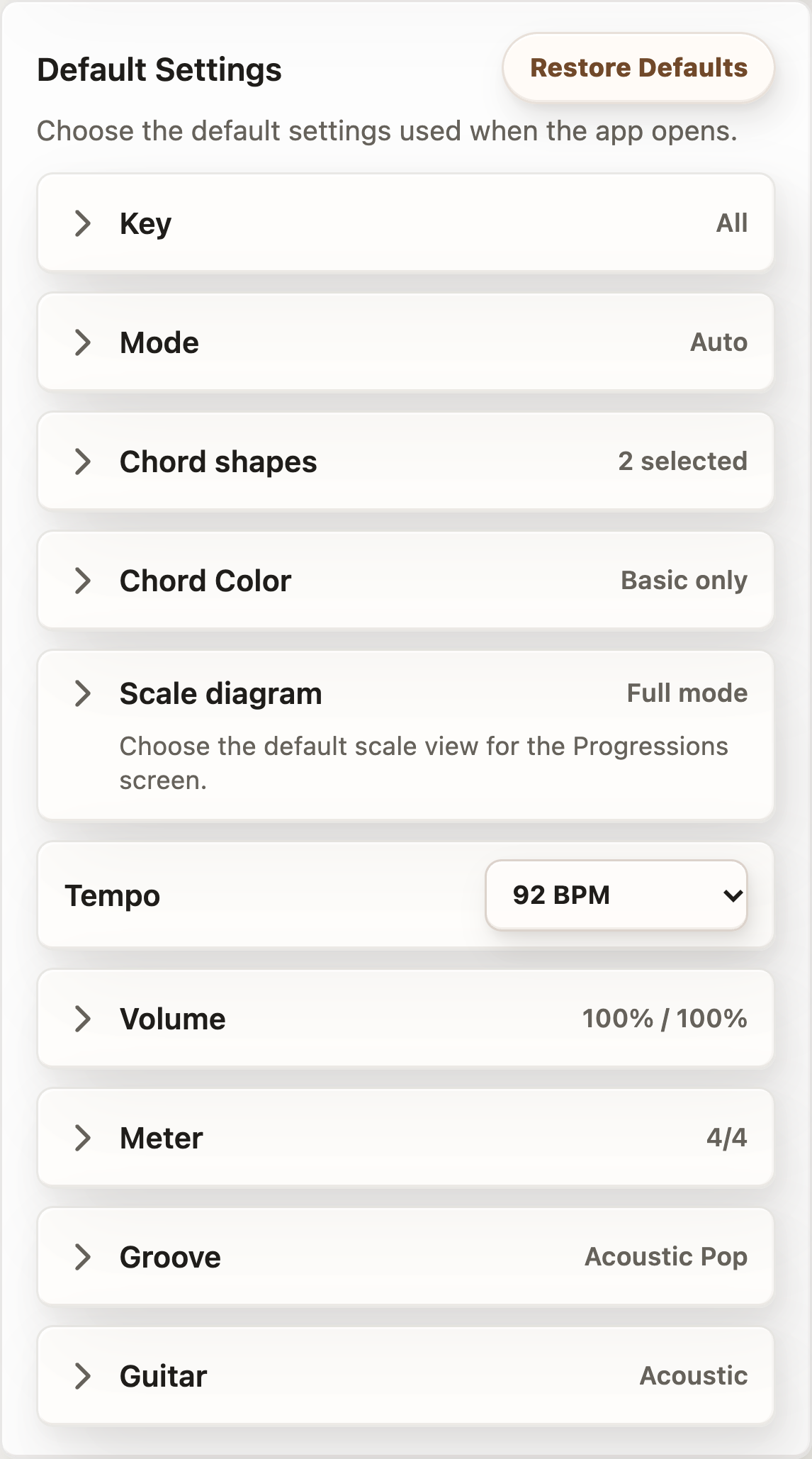
Return the default settings below to their original values.
Choose the key selected when the app opens.
Choose the mode selected when the app opens.
Choose which chord shapes are enabled when the app opens.
Choose which chord colors are enabled when the app opens.
Choose the starting scale view on the Chord Progressions screen.
Choose the starting speed in beats per minute.
Choose the starting guitar and drum volumes.
Choose the starting time signature.
Choose the starting drum groove.
Choose the starting guitar sound.
Use the settings or palette button near a diagram to change options such as labels and colors. Available choices vary by tool.
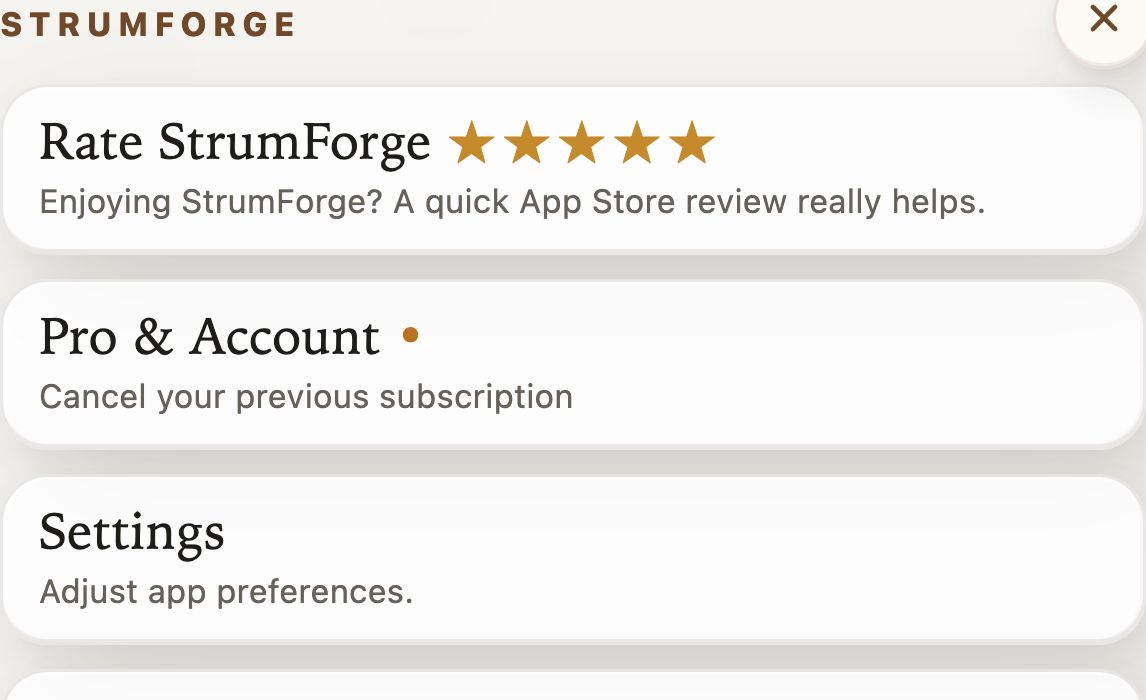
Open the app menu to sign in or manage Pro access. Some tools, settings, and saved features require Pro.